The post describes how to setup a group of restricted users in business objects.
As the result the users will not be able to create new reports.

The users will be able to run reports, drill, but not edit or save.
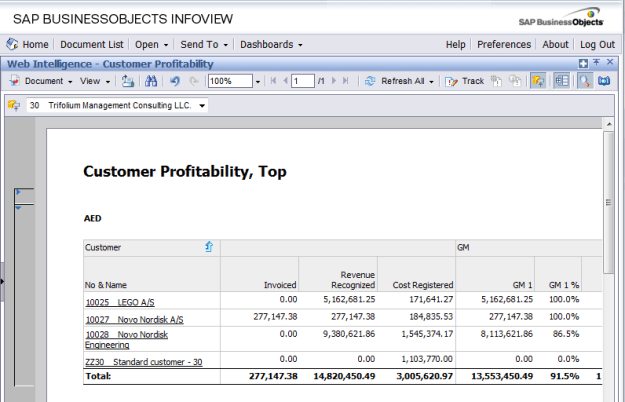
(demo data)
The post describes how to setup a group of restricted users in business objects.
As the result the users will not be able to create new reports.
The users will be able to run reports, drill, but not edit or save.
(demo data)
The quickest way to set up connection to SQL Server database from BusinessObjects is to create 32 bit System ODBC data source.
The most irritating drawback of this approach is that if there is an error in universe, it is not possible to see the real error message. For all kinds of errors, you will see the same message:
A database error occured. The database error text is: [Microsoft][ODBC Driver Manager]Statement(s) could not be prepared.. (WIS 10901)

A solution is to use OLE DB connection. In this case the error message will be more descriptive, e.g.:

First, you need to install Microsoft SQL Server 2008 Native Client.
Second, set up BusinessObjects connection to use SQL Server OLE DB instead of ODBC using the database parameters. Open connection (in Tools>Connections), click button Back, and select OLE DB as network layer, and set up the connection.

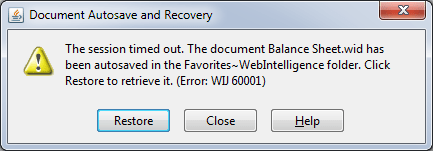
Resolution
BusinessObjects documents and universes are not stored in the CMS database. The CMS database contains only metadata – miscellaneous information about the objects. The files corresponding to the objects are stored in the BO File Repository.
For example, there is a webi document Balance Sheet in the BO. For the document, you can find its ID, CUID, and file name in Central Management Console. (FRS in the file name stands for File Repository Server)

In the example, the file name for the document is:
frs://Input/a_128/035/000/9088/adzbyinunwldinunwldindleqsaoze.wid
The BusinessObjects software is installed in C:\Business Objects, the path to the file repository server is
C:\Business Objects\BusinessObjects Enterprise 12.0\FileStore\
If you join these two, you will find the document on the server.
If you get error message “HTTP Status 400 – Invalid Path /Analytical Reporting/WebiView was requested. The request sent by the client was syntactically incorrect.”, it is very likely that you are using IE 9.
IE 9 is not supported yet by BO. It is planned to be supported in BO BI 4.1 and BOE XI 3.1 SP5 that will be released somewhere in Q1 2012.
Sometimes the only thing people do to backup BusinessObjects Enterprise server data is to backup CMS database. Unfortunately CMS database does not contain universes, documents and other stuff, it has only metadata about them (ids, descriptions etc). Backup of CMS database is not enough to restore the system from the scratch. Complete BIAR is often sufficient to restore the server.
The complete BIAR can be build from Import Wizard or using BIAR command line tool (biarengine.jar). The purpose of the command line tool is to automate importing and exporting of BIARs.
1. Create file export.properties in D:\Backup on the server with the following content:
action = exportXML
exportBiarLocation = complete.biar
userName = Administrator
password =
authentication = secEnterprise
CMS = localhost
exportDependencies = true
includeSecurity = true
exportQueriesTotal = 3
exportQuery1 = select * from CI_INFOOBJECTS
exportQuery2 = select * from CI_SYSTEMOBJECTS
exportQuery3 = select * from CI_APPOBJECTS
2. Create batch D:\Backup\backupBOE.bat executing the BIAR command line tool with the properties file.
java -jar "D:\Business Objects\common\4.0\java\lib\biarengine.jar" export.properties
3. Schedule the backupBOE.bat to run regularly in Windows scheduler.
Note that to import the BIAR you will have to use biarengine.jar and not Import Wizard. Import and export of BIAR files is not supported across tools. However it usually works if you export and import only universes and documents. I.e. when export.properties is:
action = exportXML
exportBiarLocation = complete.biar
userName = Administrator
password =
authentication = secEnterprise
CMS = localhost
exportDependencies = true
includeSecurity = true
exportQueriesTotal = 2
exportQuery1 = select * from CI_INFOOBJECTS
exportQuery2 = select * from CI_APPOBJECTS
The best way to determine the current version is through Software Inventory Tool. It has complete history of your BOE updates.
If you don’t have access to the server with the BOE, you can check the metrics of BusinessObjects servers.
Open CMC, go to Settings. In the properties, you will find the Product Version. Lookup BOE SP/FP using the reference table below.
If you have access to file system of the server, you may find the following method to be the quickest.
Browse to the folder with BO installation. For example:
C:\Program Files\Business Objects\BusinessObjects Enterprise 12.0\win32_86
Right-click the busobj.exe file, click Properties, on the the Version tab. Lookup BOE SP/FP using the reference table below.
 bukhantsov.org