BO BI 4 Tomcat generates some logs in the root folder such as SBOPWebapp_BIlaunchpad, SBOPWebapp_CMC, SBOPWebapp_Mobi_Server:
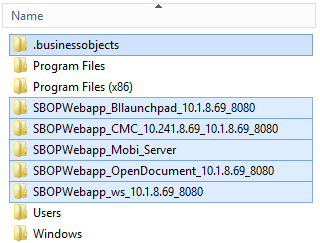
To move the logs to another folder, add Tomcat Java option
-Duser.home=C:\Program Files (x86)\SAP BusinessObjects\BO Logs

BO BI 4 Tomcat generates some logs in the root folder such as SBOPWebapp_BIlaunchpad, SBOPWebapp_CMC, SBOPWebapp_Mobi_Server:
To move the logs to another folder, add Tomcat Java option
-Duser.home=C:\Program Files (x86)\SAP BusinessObjects\BO Logs
To avoid error
“Version check failed. The source system or source BIAR file must be of an older version. The destination system system must be of the current version. (UMT 20012)”
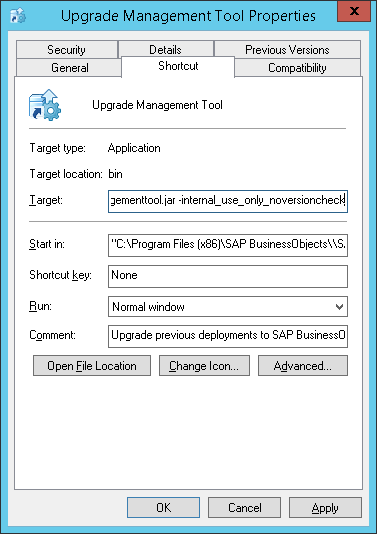
you can use (at own risk) the option
-internal_use_only_noversioncheck
In this post you will find an example of how to use Web Intelligence RESTful Web Services SDK with Java. The code displays names of the variables for each web intelligence document.
To run the code, you will need json library that can be found for instance on http://mvnrepository.com/artifact/org.json/json/20160212
import org.json.JSONArray;
import org.json.JSONObject;

public class Program {
  public static void main(String[] args) throws Exception {
    // Establish connection
    Bo4Connection connection = new Bo4Connection("http://ANALYTIX:6405/biprws");
    connection.connect("Administrator", "1-Password", "secEnterprise");
    try {
      // Get list of documents
      String docs = connection.query("GET", "/documents", "application/json");
      JSONArray documents = new JSONObject(docs).getJSONObject("documents").getJSONArray("document");
      for (int i = 0; i < documents.length(); i++) {
        JSONObject document = documents.getJSONObject(i);
        int id = document.getInt("id");
	// Get information about the document
        String doc = connection.query("GET", "/documents/" + id, "application/json");
        JSONObject info = new JSONObject(doc).getJSONObject("document");
        String name = info.getString("name");
        String path = info.getString("path");
        System.out.println(path + "/" + name);
	// Get variables of the document
        String var = connection.query("GET", "/documents/" + id + "/variables", "application/json");
        JSONArray variables = new JSONObject(var).getJSONObject("variables").getJSONArray("variable");
        for (int j = 0; j < variables.length(); j++) {
	  // Print variable information
          JSONObject variable = variables.getJSONObject(j);
          String variableName = variable.getString("name");
          System.out.println(variableName);
        }
      }
    } finally {
      connection.disconnect();
    }
  }
}
The helper API is very simple and contains a constructor and 3 functions: connect(username, password, auth), disconnect(), and query(method, link, format).
The constructor’s parameter is the link to web services.
Bo4Connection connection = new Bo4Connection(“http://ANALYTIX:6405/biprws”);
The call to web services is performed with function query. For instance, to get list of documents we send a GET request to /documents, and we want to get result in json format.
connection.query(“GET”, “/documents”, “application/json”);
To get the list of all possible request, please refer to RESTful Web Services SDK Developer Guides on http://scn.sap.com/docs/DOC-27465
import java.io.*;
import java.net.*;
import java.nio.charset.StandardCharsets;
import org.json.JSONObject;

public class Bo4Connection {

  private String biprws;
  private String token;

  public Bo4Connection(String biprws) {
    this.biprws = biprws;
  }

  public String query(String method, String link, String format) throws Exception {
    return query(method, biprws + "/raylight/v1" + link, format, token, null);
  }

  public void connect(String username, String password, String auth) throws Exception {
    String link = biprws + "/logon/long/";
    String method = "POST";
    String format = "application/json";
    String body = "<attrs xmlns=\"http://www.sap.com/rws/bip\">"
      + "<attr name=\"userName\" type=\"string\">" + username + "</attr>"
      + "<attr name=\"password\" type=\"string\">" + password + "</attr>"
      + "<attr name=\"auth\" type=\"string\">" + auth + "</attr>"
      + "</attrs>";
    JSONObject json = new JSONObject(query(method, link, format, null, body));
    token = json.getString("logonToken");
  }

  public void disconnect() throws Exception {
    String link = biprws + "/logoff/";
    String method = "POST";
    String format = "application/json";
    query(method, link, format, null, null);
  }

  public static String query(String method, String link, String format,
      String token, String content) throws Exception {
    HttpURLConnection conn = null;
    try {
      URL url = new URL(link);
      conn = (HttpURLConnection) url.openConnection();
      conn.setRequestMethod(method);
      conn.setRequestProperty("Accept", format);
      if (token != null) {
        String logonToken = "\"" + token + "\"";
        conn.setRequestProperty("X-SAP-LogonToken", logonToken);
      }
      conn.setDoOutput(true);
      conn.setDoInput(true);
      if (content != null) {
        conn.setRequestProperty("Content-Type",
            "application/xml; charset=utf-8");
        conn.setRequestProperty("Content-Length",
            Integer.toString(content.length()));
        OutputStreamWriter out = new OutputStreamWriter(conn.getOutputStream());
        out.write(content, 0, content.length());
        out.flush();
      }
      conn.connect();
      if (conn.getResponseCode() != 200) {
        throw new Exception("HTTP Error Code: " + conn.getResponseCode()
          + " " + conn.getResponseMessage());
      }
      BufferedReader br = new BufferedReader(
        new InputStreamReader(conn.getInputStream(), StandardCharsets.UTF_8));
      StringBuilder result = new StringBuilder();
      String output;
      while ((output = br.readLine()) != null) {
        result.append(output);
        result.append('\n');
      }
      br.close();
      return result.toString();
    } finally {
      if (conn != null) {
        conn.disconnect();
      }
    }
  }
}
These steps describe the procedure for re-deploying web applications for BO XI 3.1 with Tomcat 7. Re-deploying is required, for instance, if you uninstall a language pack from Business Objects.
In BO XI 3.1, to edit a merged dimension, we could right click on a merged dimension, and select “Edit merged dimension” from pop up menu, this would open a dialog for editing merged dimensions. This has changed in BI 4.x, and it might be not obvious how to adjust merged dimensions.
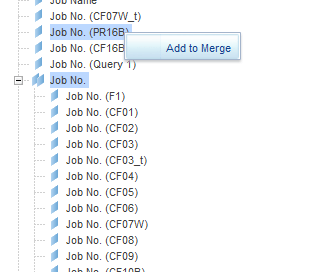
Add dimensions to a merged dimension:
Select the merged dimension and objects you want to add, click right button, select “Add to Merge”.
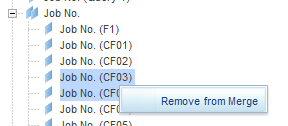
Remove dimensions from a merged dimension:
Select dimensions that you want to remove from merged dimensions, click right button, and select “Remove from Merge”
When we use a OpenDocument link to open a Webi document, the report is displayed with a number of controls.
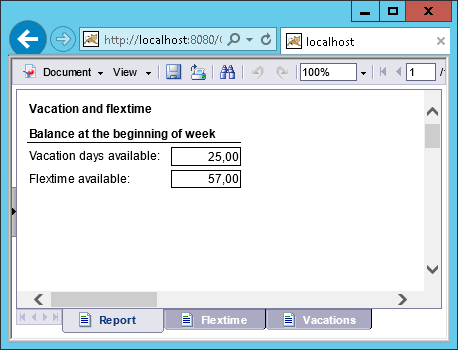
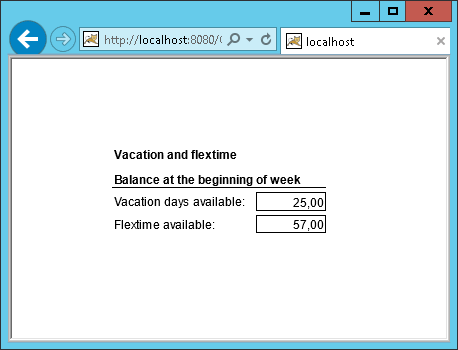
Sometimes we want to get rid of the controls and display only specific block (for instance, when it needs to be embedded into another application). This can be done with undocumented parameter sReportPart
The link will look like:
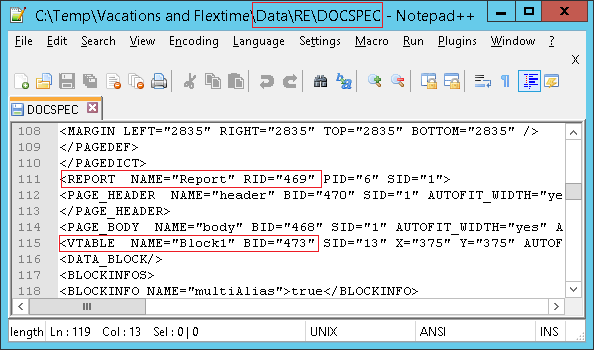
http://localhost:8080/OpenDocument/opendoc/openDocument.jsp?sType=wid&sIDType=CUID&iDocID=Aan15wubifNFikJjmlT.LVU&sReportPart=UIREF:RID=469:BID=473&mode=part
The tricky part is to find the ids: RID – Report id, and BID – Block id.
To find the IDs,
To change server name for an Oracle connection in BusinessObjects, we need to update the definition of SID in tnsnames.ora file. You can specify the server name, port and instance in the connection:

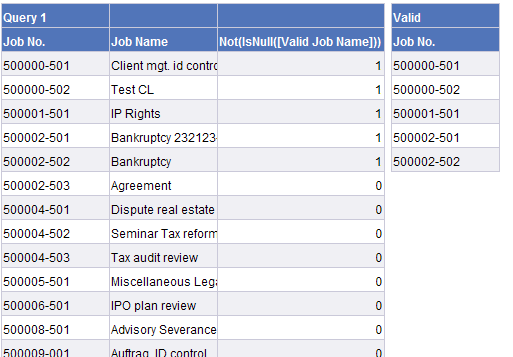
We want to validate values of the dimension [Job No.] from Query 1 against values of [Job No.] from query Valid within Webi report.


We can create a detail object [Valid Job Name] for merged object [Job No.] that points to unmerged dimension from the query Valid [Valid].[Job Name] and use it in the following expression to check if the value is valid:
=Not(IsNull([Valid Job Name]))
So the point is to use unmerged object expression like =Not(IsNull([Valid].[Job No.])) will not work.

We want to add hyperlink to an image in Webi document.
Here I am using an image with name UserLogo1.png that has size 165 x 25.
Copy your image to the server to the folder:
C:\BusinessObjects\BusinessObjects Enterprise 12.0\images
Create a cell and set properties to the following.
Text: <a href=’http://google.com‘ style=’width:165px; height:25px;’ target=’_blank’> </a>
Width: 165
Height: 25
Read cell content as: Hyperlink
Background image: boimg://UserLogo1.png
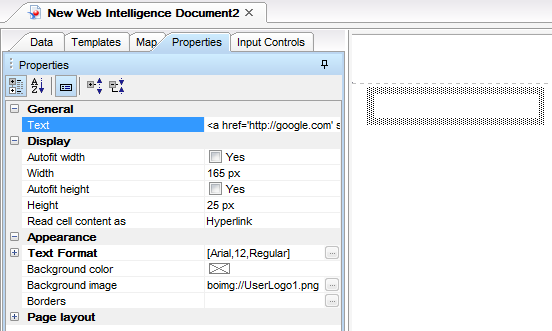
(It does not work in PDF and Excel)
I have struggled quite a lot with the error “Interface requested not found : csLIB” when trying to open a semantic layer using SAP BO SL SDK 4.1. It was quite a complex issue so I will summarize it here in case someone has a similar problem.
Here I am using a local universe Test with SQL Server connection.
The code is simple.
import com.sap.sl.sdk.authoring.businesslayer.RelationalBusinessLayer;
import com.sap.sl.sdk.authoring.local.LocalResourceService;
import com.sap.sl.sdk.framework.SlContext;

public class Test {
  public static void main(String[] args) {
    SlContext context = SlContext.create();
    String businessLayerPath = ".\\Test.blx";
    LocalResourceService service = context.getService(LocalResourceService.class);
    RelationalBusinessLayer businessLayer =
                        (RelationalBusinessLayer) service.load(businessLayerPath);
    service.close(businessLayer);
    context.close();
    System.out.println("OK");
  }
}
Batch for compilation and execution
@echo off
set JAVA_HOME=C:/Program Files (x86)/Java/jdk1.6.0_45
set JAVA="%JAVA_HOME%/bin/java"
set JAVAC="%JAVA_HOME%/bin/javac"

set BO=C:/SAP BusinessObjects/SAP BusinessObjects Enterprise XI 4.0
set CS=%BO%/dataAccess/connectionServer
set CP=%BO%/SL SDK/java/sl_sdk.jar;%BO%/java/lib/*

set PATH=%BO%/win32_x86

%JAVAC% -classpath "%CP%" Test.java
%JAVA% -Dbusinessobjects.connectivity.directory="%CS%" -classpath "%CP%" Test
pause
Everything was done according to SL SDK documentation but I still got the error:
Exception in thread “main” com.sap.tools.commons.exception.NestedException: Interface requested not found : csLIB
Caused by: com.sap.connectivity.cs.core.CSError: Interface requested not found : csLIB
Caused by: java.lang.UnsatisfiedLinkError: C:\Program Files (x86)\SAP BusinessObjects\SAP BusinessObjects Enterprise XI 4.0\win32_x86\cs_jni.dll: The specified procedure could not be found
I started investigating DLL loading process using Process Monitor and found that the library cs_jni.dll depends on the library icuin30.dll from win32_x86. However I had an older version in the folder C:\Windows\SysWOW64\. And since the system directories are checked before going through directories in the PATH variables, a wrong version was picked.
I have overwritten the icu??30.dll libraries in SysWOW64 with the libraries from win32_x86 and the code started to work.
(The “icu” stands for “International Components for Unicode”.)
I do not know the impact of the change to other application, use it at your own risk. If you are going to try it, make backup of the existing files.
 bukhantsov.org