Category Archives: Business Objects

BusinessObjects

Use of Alerts in Webi

This post is a quick guide how to add a simple alert to a table in Webi.
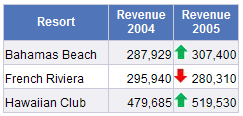
Images

Upload necessary images to the BO server in the folder

[Business Objects]\BusinessObjects Enterprise 12.0\images

In this example images green_arrow.gif and red_arrow.gif were used.

Preparation

Create new Webi document based on Island Resort Marketing universe, Pull object Resort, Year, Revenue into the query. Create the variable Revenue 2004 with the following expression:

=Sum(If [Year]=”FY2004″ Then [Revenue])

and Revenue 2005

=Sum(If [Year]=”FY2005″ Then [Revenue])

Defining Alert

Click the alerter button on the tool bar.
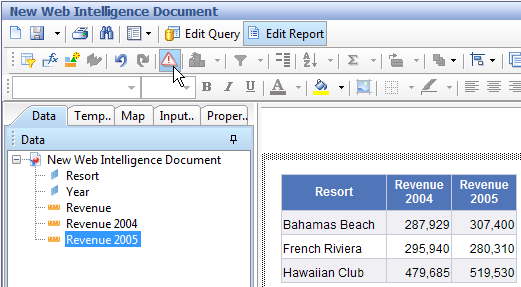
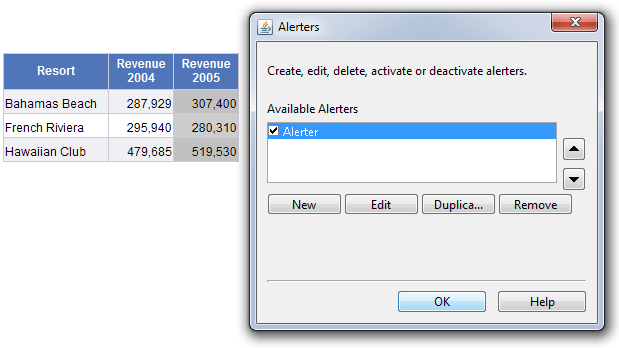
Create new alerter, and in the created alerter add two sub-alerters: one for green arrow when Revenue for 2004 is less then Revenue for 2oo5, and one for red arrow in the opposite situation.

For the first sub-alerter, select “Image from URL”, and enter “boimg://greet_arrow.gif” in the URL field. Boimg refers to the folder [Business Objects]\BusinessObjects Enterprise 12.0\images. Do the same for the second sub-alerter.

Apply the created alerter for the column Revenue 2005.
This will add the arrows to the cells:

Another use of Alerts

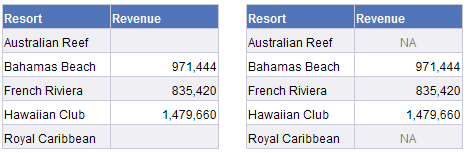
Another use of alerts is to replace blank (on the left side) values with NA (on the right side):
 

Importing Linked Universes

Problem

Let’s assume there are two universes: Base and Derived. The Derived universe is linked to Base (Base does not have any link to other universes).

If you are importing Derived and then Base using .NET Designer SDK – everything is ok.

Universe derivedUnv = application.Universes.OpenFromEnterprise("", "Derived", false);
Universe baseUnv = application.Universes.OpenFromEnterprise("", "Base", false);

If you try to import Base and then Derived, import of the Derived universe will fail with the error: ‘Base’ is already open. Please close it and try again.

Let’s assume that we need to import a bunch of universes. The derived universes should be imported first, and the base universes should be imported last. How to determine if the universe is a base universe?

“Solution”

For me the most simple and working solution has been to avoid problem. I usually process universes one-by-one, i.e. I do not import many universes.

Solution

A solution is to query CMS to get the list of base universes:

List<String> list = new List<string>();

CrystalDecisions.Enterprise.InfoObjects unv_objects =
    infoStore.Query("SELECT * FROM CI_APPOBJECTS WHERE SI_KIND = 'Universe' "
                   +"AND SI_DERIVEDUNIVERSE.SI_TOTAL>0");

foreach (CrystalDecisions.Enterprise.InfoObject unv_object in unv_objects)
{
    list.Add(unv_object.CUID);
}

Now you can import the derived universes:

foreach (StoredUniverse unv in src_folder.StoredUniverses)
{
    if (!list.Contains(unv.CUID))
    {
        application.Universes.OpenFromEnterprise(src_path, unv.Name, false);
    }
}

and then the base universes:

foreach (StoredUniverse unv in src_folder.StoredUniverses)
{
    if (list.Contains(unv.CUID))
    {
        application.Universes.OpenFromEnterprise(src_path, unv.Name, false);
    }
}

Details

Let me know if you need details or complete code..

Compile and run BO SDK Java tool from Command Line

You can compile and run java tools without installation of IDE. You need JDK and BO SDK libraries. On BO server (with default settings), JDK can be found in

C:\Program Files (x86)\Business Objects\javasdk\bin

Batch to setup class path (env.bat)

@echo off
set libs=C:\Program Files (x86)\Business Objects\common\4.0\java\lib
set cp=%libs%/boconfig.jar
set cp=%cp%;%libs%/cecore.jar
set cp=%cp%;%libs%/celib.jar
set cp=%cp%;%libs%/cesdk.jar
set cp=%cp%;%libs%/cesession.jar
set cp=%cp%;%libs%/corbaidl.jar
set cp=%cp%;%libs%/ebus405.jar
set cp=%cp%;%libs%/javacsv.jar
set cp=%cp%;%libs%/jtools.jar
set cp=%cp%;%libs%/logging.jar
set cp=%cp%;%libs%/rebean.common.jar
set cp=%cp%;%libs%/rebean.jar
set cp=%cp%;%libs%/rebean.wi.jar
set cp=%cp%;%libs%/SL_plugins.jar
set cp=%cp%;%libs%/wilog.jar
set cp=%cp%;%libs%/external/xpp3.jar
set cp=%cp%;%libs%/external/xpp3_min.jar;
@echo on
set cp="%cp%"

Test program (Program.java)

import com.crystaldecisions.sdk.exception.SDKException;
import com.crystaldecisions.sdk.framework.*;
import com.crystaldecisions.sdk.occa.infostore.*;

public class Program {
    public static void main(String[] args) {
        IEnterpriseSession enterpriseSession = null;
        try {
            System.out.println("Connecting...");
            ISessionMgr sessionMgr = CrystalEnterprise.getSessionMgr();
            enterpriseSession = sessionMgr.logon("Administrator", "",
                "localhost", "secEnterprise");
            // something useful
        } catch (SDKException ex) {
            ex.printStackTrace();
        } finally {
            if (enterpriseSession != null)
                enterpriseSession.logoff();    
        }
        System.out.println("Finished!");
    }
}

Compile and run

env.bat
javac -cp %cp% Program.java
java Program

How to retrieve SQL query of QaaWS using BO Java RE SDK

QaaWS is stored as Webi document on the server

To check that QaaWS is represented as Webi document, you can open Query Builder and run the following SQL:

SELECT * FROM CI_APPOBJECTS WHERE SI_KIND='QaaWS'

The property SI_FILES describes the location of the files corresponding to QaaWS and it is actually the WID file:

The following code prints queries for all QaaWS found in CMS:

IInfoObjects objs = infoStore.query("SELECT * FROM CI_APPOBJECTS WHERE SI_KIND='QaaWS'");
System.out.println("Number of QaaWS found: " + objs.size());
for (Object obj : objs) {
   IInfoObject infoObj = (IInfoObject)obj;
   System.out.println("------ " + infoObj.getTitle() + " ------");
   DocumentInstance widoc = wiRepEngine.openDocument(infoObj.getID());
   printQuery(widoc);
   widoc.closeDocument();
}

The function printing SQL of Webi document

public static void printQuery(DocumentInstance widoc) {
   DataProviders dps = widoc.getDataProviders();
   for (int i = 0; i < dps.getCount(); ++i) {
      DataProvider dp = (DataProvider)dps.getItem(i);
      if (dp instanceof SQLDataProvider) {
         SQLDataProvider sdp = (SQLDataProvider)dp;
         ArrayList<TreeNode> nodes = getListOfTreeNodes(sdp.getSQLContainer(), true);
         for (TreeNode node : nodes) {
            if (node instanceof SQLSelectStatement) {
               SQLSelectStatement query = (SQLSelectStatement)node;
               System.out.println(query.getSQL());
            }
         }
      }
   }
}

Auxiliary functions

The following function finds the list of all nodes in the tree. It might be more convenient then writing recursion:

public static ArrayList<TreeNode> getListOfTreeNodes(TreeNode root, boolean onlyLeaves) {
   ArrayList<TreeNode> nodes = new ArrayList<TreeNode>();
   treeNodeTraversal(root, nodes, onlyLeaves);
   return nodes;
}

private static void treeNodeTraversal(TreeNode node,
   ArrayList<TreeNode> nodes,
   boolean onlyLeaves)
{
   if (!onlyLeaves || node.isLeaf()) {
      nodes.add(node);
   }
   for (int i = 0; i < node.getChildCount(); ++i) {
      treeNodeTraversal(node.getChildAt(i), nodes, onlyLeaves);
   }
}

Source Code

How to Create a Folder in CMS using BO Java SDK

public static void createFolder(
	IInfoStore infoStore,
	String name,
	String description,
	String parentCUID)
		throws SDKException
{
	IPluginMgr pluginMgr = infoStore.getPluginMgr();
	IPluginInfo plugin = pluginMgr.getPluginInfo(CeKind.FOLDER);
	IInfoObjects newInfoObjects = infoStore.newInfoObjectCollection();
	newInfoObjects.add(plugin);
	IInfoObject infoObject = (IInfoObject)newInfoObjects.get(0);
	infoObject.setTitle(name);
	infoObject.setDescription(description);
	infoObject.properties().setProperty(CePropertyID.SI_PARENT_CUID, parentCUID);
	infoStore.commit(newInfoObjects);
}

Handling Ctrl+C in a C# console tool (Designer SDK)

Handling exceptions is not enough to make clean up (quit Designer). The following code handles Ctrl+C.

using System;
using Designer;
namespace ConsoleApplication1
{
    class Program
    {
        delegate void CleanUpMethod();

        static void Main(string[] args)
        {
            Application application = new Application();

            CleanUpMethod cleanUp = delegate { application.Quit(); };
            Console.CancelKeyPress += delegate { cleanUp(); };

            try
            {
                application.LogonDialog();

                // ... some code here ...
            }
            catch (Exception ex)
            {
                Console.WriteLine(ex.ToString());
            }
            finally
            {
                cleanUp();
            }
        }
    }
}

Cell Borders in Web Intelligence

Web Intelligence cell borders function differently from the borders in Excel. The border in Web Intelligence can have different color from sides. For example, left of two adjacent cells can have gray right border, right can have black left border. The color of the border on the screen depends on the rendering algorithm, i.e. browser, presentation format (PDF, HTML, XLS), View/Edit mode.

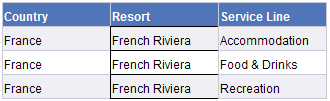
To demonstrate this, let’s create a report, add a table with three objects to it. Select the middle column and change its borders to be black from each side:

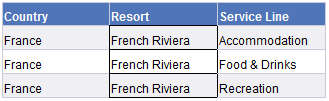
The result can be the following:

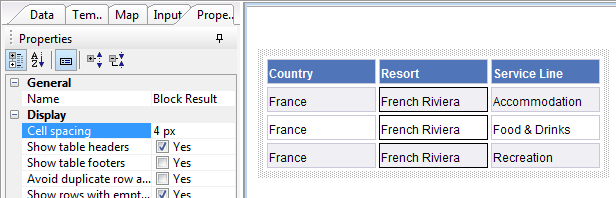
You can change spacing between cells and see the cells and the borders:

To make sure that borders are always displayed correctly, set the same color from both sides:

Without spacing, the border will look as desired:

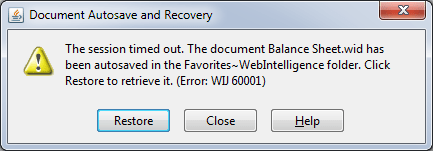
How to fix “Session timed out” (Tomcat)

Resolution

  1. Stop Tomcat
  2. Edit “web.xml” files in the following folders (do not forget to make a copy before editing):
    • “[Tomcat55 Directory]\webapps\InfoViewApp\WEB-INF”,
    • “[Tomcat55 Directory]\webapps\InfoViewAppActions\WEB-INF” ,
    • “[Tomcat55 Directory]\webapps\AnalyticalReporting\WEB-INF”,
    • “[Tomcat55 Directory]\webapps\PlatformServices\WEB-INF”,
    • “[Tomcat55 Directory]\Conf”
  3. Set the session timeout to 60 minutes
    • <session-timeout>60</session-timeout>
  4. Save and close the “web.xml” file.
  5. Clean the “Work” directory. Go into “[Tomcat55 Directory]\Work\Catalina\localhost” and delete the following temporary directories (or move somewhere):
    • AnalyticalReporting
    • InfoViewApp
    • InfoViewAppActions
    • PlatformServices
  6. Start Tomcat
  7. Launch the CMC. Login and go to the Servers tab
  8. Edit the properties for “ServerName.WebintelligenceProcessingServer” and set the following:
    • Idle Connection Timeout (minutes): = 60
    • Timeout Before Recycling (seconds): = 3600
    • Save and close
  9. Restart “ServerName.WebintelligenceProcessingServer”.
  10. Test.

Where universes and documents are stored

BusinessObjects documents and universes are not stored in the CMS database. The CMS database contains only metadata – miscellaneous information about the objects. The files corresponding to the objects are stored in the BO File Repository.

For example, there is a webi document Balance Sheet in the BO. For the document, you can find its ID, CUID, and file name in Central Management Console. (FRS in the file name stands for File Repository Server)

In the example, the file name for the document is:

frs://Input/a_128/035/000/9088/adzbyinunwldinunwldindleqsaoze.wid

The BusinessObjects software is installed in C:\Business Objects, the path to the file repository server is

C:\Business Objects\BusinessObjects Enterprise 12.0\FileStore\

If you join these two, you will find the document on the server.