public static void createFolder( IInfoStore infoStore, String name, String description, String parentCUID) throws SDKException { IPluginMgr pluginMgr = infoStore.getPluginMgr(); IPluginInfo plugin = pluginMgr.getPluginInfo(CeKind.FOLDER); IInfoObjects newInfoObjects = infoStore.newInfoObjectCollection(); newInfoObjects.add(plugin); IInfoObject infoObject = (IInfoObject)newInfoObjects.get(0); infoObject.setTitle(name); infoObject.setDescription(description); infoObject.properties().setProperty(CePropertyID.SI_PARENT_CUID, parentCUID); infoStore.commit(newInfoObjects); }
Handling Ctrl+C in a C# console tool (Designer SDK)
Handling exceptions is not enough to make clean up (quit Designer). The following code handles Ctrl+C.
using System; using Designer; namespace ConsoleApplication1 { class Program { delegate void CleanUpMethod(); static void Main(string[] args) { Application application = new Application(); CleanUpMethod cleanUp = delegate { application.Quit(); }; Console.CancelKeyPress += delegate { cleanUp(); }; try { application.LogonDialog(); // ... some code here ... } catch (Exception ex) { Console.WriteLine(ex.ToString()); } finally { cleanUp(); } } } }
Mouse pointer disappearing in Windows 7
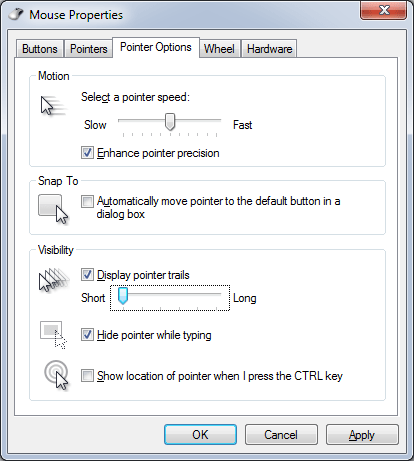
I had a problem – my mouse pointer was disappearing after waking up computer on occasion. Nothing helped except System Restore which was not actually very neat solution as restoration also removed important system changes or software.
I spend few hours searching internet for the solution but have not found anything that solved my problem.
What worked for me was to uninstall all mouse drivers and reboot the computer.


Personal File Sharing
If you need easy accessible personal file store, there are a lot of them on the web. Another solution is to use google blobstore service – a geek’s choise π

import urllib from google.appengine.ext import blobstore from google.appengine.ext import webapp from google.appengine.ext.webapp import blobstore_handlers from google.appengine.ext.webapp.util import run_wsgi_app class MainHandler(webapp.RequestHandler): def get(self): upload_url = blobstore.create_upload_url('/upload') self.response.out.write("""<html> <body style="font-family:arial,sans-serif;"> <form action="%s" method="POST" enctype="multipart/form-data"> Upload File:<br/> <input type="file" name="file"/> <input type="submit" name="submit" value="Submit"/> </form>""" % upload_url) for b in blobstore.BlobInfo.all(): self.response.out.write("""<li> <a href="/serve/%s">%s</a> (<a href="/delete/%s">Delete</a>)""" % (str(b.key()), str(b.filename), str(b.key()))) self.response.out.write("</body></html>") class UploadHandler(blobstore_handlers.BlobstoreUploadHandler): def post(self): self.redirect('/') class ServeHandler(blobstore_handlers.BlobstoreDownloadHandler): def get(self, resource): resource = str(urllib.unquote(resource)) blob_info = blobstore.BlobInfo.get(resource) self.send_blob(blob_info, save_as=blob_info.filename) class DeleteHandler(webapp.RequestHandler): def get(self, resource): resource = str(urllib.unquote(resource)) blob_info = blobstore.BlobInfo.get(resource) blob_info.delete() self.redirect('/') def main(): application = webapp.WSGIApplication( [('/', MainHandler), ('/upload', UploadHandler), ('/delete/([^/]+)?', DeleteHandler), ('/serve/([^/]+)?', ServeHandler), ], debug=True) run_wsgi_app(application) if __name__ == '__main__': main()
Cell Borders in Web Intelligence
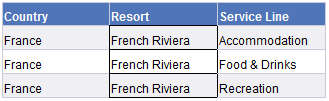
Web Intelligence cell borders function differently from the borders in Excel. The border in Web Intelligence can have different color from sides. For example, left of two adjacent cells can have gray right border, right can have black left border. The color of the border on the screen depends on the rendering algorithm, i.e. browser, presentation format (PDF, HTML, XLS), View/Edit mode.
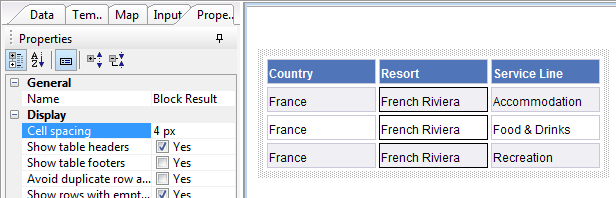
To demonstrate this, let’s create a report, add a table with three objects to it. Select the middle column and change its borders to be black from each side:

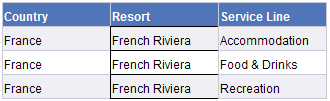
The result can be the following:

You can change spacing between cells and see the cells and the borders:

To make sure that borders are always displayed correctly, set the same color from both sides:

Without spacing, the border will look as desired:

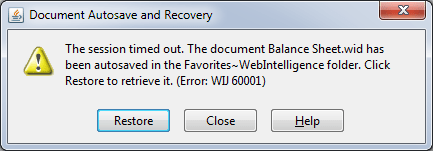
How to fix “Session timed out” (Tomcat)

Resolution
- Stop Tomcat
- Edit “web.xml” files in the following folders (do not forget to make a copy before editing):
- “[Tomcat55 Directory]\webapps\InfoViewApp\WEB-INF”,
- “[Tomcat55 Directory]\webapps\InfoViewAppActions\WEB-INF” ,
- “[Tomcat55 Directory]\webapps\AnalyticalReporting\WEB-INF”,
- “[Tomcat55 Directory]\webapps\PlatformServices\WEB-INF”,
- “[Tomcat55 Directory]\Conf”
- Set the session timeout to 60 minutes
- <session-timeout>60</session-timeout>
- Save and close the “web.xml” file.
- Clean the “Work” directory. Go into “[Tomcat55 Directory]\Work\Catalina\localhost” and delete the following temporary directories (or move somewhere):
- AnalyticalReporting
- InfoViewApp
- InfoViewAppActions
- PlatformServices
- Start Tomcat
- Launch the CMC. Login and go to the Servers tab
- Edit the properties for “ServerName.WebintelligenceProcessingServer” and set the following:
- Idle Connection Timeout (minutes): = 60
- Timeout Before Recycling (seconds): = 3600
- Save and close
- Restart “ServerName.WebintelligenceProcessingServer”.
- Test.
Configuring Eclipse on Windows to Use With Google App Engine
The post “Configuring Eclipse on Windows to Use With Google App Engine” on Google has not been updated since 2008. Here is the updated version for Eclipse 3.7 (Indigo).
Before you start, download and install the following components:
- Python – e.g. Python 2.7.2 Windows Installer for Windows
- Eclipse – e.g. Eclipse Classic 3.7
- Google App Engine SDK – e.g. GoogleAppEngine-1.6.0.msi
Python Google App Engine Calculator
Couple of months ago, accidentally I found myself on a conference for Python developers. I thought “what the hell am I doing here”. Ok, now I got into an interesting project and have to learn Python… π
My first program – Calculator:)

import webapp2 class MainPage(webapp2.RequestHandler): def get(self): # build a list of operations f = {'+': lambda x, y: str(float(x) + float(y)), '-': lambda x, y: str(float(x) - float(y)), '*': lambda x, y: str(float(x) * float(y)), '/': lambda x, y: str(float(x) / float(y)), 'C': lambda x, y: "", } # get page parameters x = self.request.get('x') y = self.request.get('y') operator = self.request.get('operator') # calculate result = "" try: result = f[operator](x, y) except ValueError: result = "Error: Incorrect Number" except ZeroDivisionError: result = "Error: Division by zero" except KeyError: pass # build HTML response buttons = "".join(["<input type='submit' name='operator' value='" + o + "'>" for o in sorted(f.keys())]) self.response.out.write("""<html> <body> <form action='/' method='get' autocomplete='off'> <input type='text' name='x' value='%s'/><br/> <input type='text' name='y'/><br/> %s </form> </body> </html>""" % (result, buttons)) app = webapp2.WSGIApplication([('/', MainPage)], debug=True)
Creating Aggregate Tables
This post demonstrates an example how to create aggregation tables in Kettle.
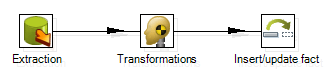
Let’s assume the original transformation loading delta is the following:

It reads data from source database, makes some transformations and loads data into data warehouse.
The source table JobEntry has two grouping fields project_id and employee_id and one additive measure registered_hrs. The task is to update aggregate tables (by project_id, and by employee_id) without complete rebuilding them.
Before updating the fact table in data warehouse, we need to retain the current value from the fact table (step Get previous fact value). After the fact table is updated, we are updating the aggregate tables. We calculate difference between the new and old value (step Calculate change), summarize the change of value to necessary granularity (steps Sort rows, Aggregate), and add the change to the value in the aggregate table (steps Get old agg.value, Calculate new value, Insert/update agg table).Β The transformation may look like this:

Demo Data (SQL Server)
The source database table:
create table JobEntry ( project_id int, employee_id int, registered_hrs numeric(22,2) )
The script changing the table (updating existing or inserting new rows):
declare @project_id int = RAND() * 3, @employee_id int = RAND() * 3, @registered_hrs numeric(22,2) = RAND() * 10 declare @cnt int = ( select COUNT(*) from JobEntry where employee_id = @employee_id and project_id = @project_id ) if @cnt = 0 begin insert JobEntry values ( @project_id, @employee_id, @registered_hrs ) end else begin update JobEntry set registered_hrs = @registered_hrs where employee_id = @employee_id and project_id = @project_id end select * from JobEntry
The transformation
The data warehouse tables:
create table f_jobentry( project_id int, employee_id int, registered_hrs decimal(22,2) ); create table f_jobentry_employee ( employee_id int, registered_hrs decimal(22,2) ); create table f_jobentry_project ( project_id int, registered_hrs decimal(22,2) );
Test
- Create the necessary tables.
- Run the script generating data.
- Run the transformation updating the fact table and aggregate tables.
- Check the output tables.
- Run the script.
- Run the transformation.
- Check the output tables.
Summary
This approach seems too complex. Maybe the complete rebuilding the aggregate tables is not bad…
Activity Tracker
Do you have to fill timesheet weekly? I have to..Β This small tool can help you to remember what you were doing last week π
![]()
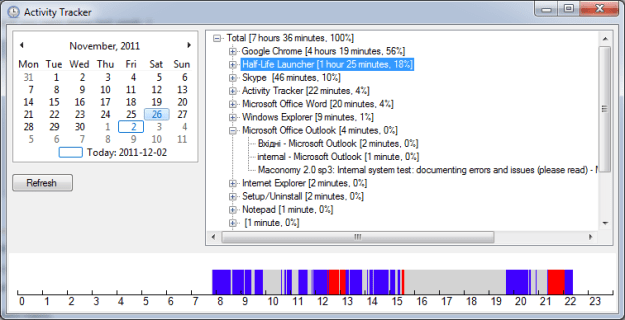
You start the tool and minimize it to tray. It tracks activity on your computer and logs it to a file, so you can later see what you were doing. The information, the program tracks every minute, is:
- was there any activity (mouse or keyboard input),
- current foreground program,
- the title of the current foreground program.
Click on the program icon in the tray, opens it. You can pick a date, and you will see the 24 hours activity chart in the bottom, and time statistics in the tree.
The color meaning on the activity chart are the following:
- White – no information, the computer was turned off or the program was not running.
- Gray – idle time.
- Blue – there was some activity.
- Red – highlights the time when the program selected in the tree was active.
Source Code
https://bukhantsov.org/tools/ActivityTracker.zip
The 64 bit executable is in
ActivityTracker.zip\ActivityTracker\ActivityTracker\bin\x64\Release
Security
The data file is stored in “My Documents” and has name activitytracker.txt.
If other people has access to the file, please think twice before using the tool. The program will log everything you do and every minute. π
TO-DO: Password protection. The data should be stored in password protected zip file. To start the program, the user will have to enter the password for the zip file. If there is no data file, user will have to enter “new” password which will be used for the zip file.
A bit of code
The code builds a histogram and then orders the array by frequency in descending order.
Histogram:
string[] list = { "x", "b", "b", "x", "x", "z", "c", "x", "b", "c" }; Dictionary<string, int> histogram = new Dictionary<string, int>(); foreach (string s in list) { if (!histogram.ContainsKey(s)) histogram.Add(s, 1); else histogram[s] += 1; }
The following code demonstrates use of lambda expressions for sorting (it was new to me).
List<KeyValuePair<string, int>> sortedlist = new List<KeyValuePair<string, int>>(histogram); sortedlist.Sort((firstPair, nextPair) => -firstPair.Value.CompareTo(nextPair.Value)); foreach (KeyValuePair<string, int> p in sortedlist) { Console.WriteLine(p.Key + ": " + p.Value); }
This can also be done using LINQ:
var sortedlist = from s in histogram orderby s.Value descending select s; foreach (var p in sortedlist) { Console.WriteLine(p.Key + ": " + p.Value); }
Update, 2011-11-19
Some bugs were corrected
Some enhancements
The new source code uploaded
Alternatives π
Of course, the program was written mostly for fun. Consider ManicTime if you really need activity tracking software.