Category Archives: SDK

BusinessObjects SDK

How to change universe of a webi document using BO RE Java SDK

Web Intelligence documents use one or many universes. Sometimes it is necessary to change universes for a bunch of reports. Changing universe might be very difficult if you need to modify dozens of documents. Luckily it is possible to utilize BusinessObjects Report Engine Java SDK.

There is a number of Webi documents in a folder which use a number of universes. The task is to make a copy of these on the same BOE server.

It is easy to copy documents (in CMC) and universes (using Universe Designer. The complex problem is to change a copied document to use the copied universes.

The manual procedure of changing universe for a document is the following:

  • Open Webi document in Web Intelligence in edit mode.
  • Click Edit query.
  • For each query, change universe in the query properties.
  • Changing universe you have to confirm mapping. If you change a universe to its copy, you do not need to do anything in this mapping. But just confirming it takes few seconds.

The automated procedure for all documents will do the following:

  • Get list of universe IDs that used by the copied documents.
  • Get list of all available universes.
  • Create a mapping of IDs.
  • Map all reports from the original universes to their copies using the mapping.

If you have to modify 5 documents, the writing code might take even more time then do it manually, but anyway coding is more fun then clicking 🙂

If you have to modify 50  documents, think twice before starting manual work.

Java Function

public static boolean changeUniverses(DocumentInstance widoc,
                                      HashMap<String, String> mapping)
{
   boolean failed = false;
   DataProviders dps = widoc.getDataProviders();
   HashSet<DataSource> dataSources = new HashSet<DataSource>();
   for (int i = 0; i < dps.getCount(); ++i) {
      DataProvider dp = (DataProvider) dps.getItem(i);
      dataSources.add(dp.getDataSource());
   }
   for (DataSource ds: dataSources) {
      String universeId = ds.getUniverseID();
      String oldID = universeId;
      String newID = mapping.get(oldID);
      System.out.println(oldID + "->" + newID);
      dps.changeUniverse(oldID, newID, true);
      if (dps.mustFillChangeUniverseMapping()) {
         ChangeUniverseMapping unvMapping = dps.getChangeUniverseMapping();
         ChangeDataSourceMapping[] dsMappings = unvMapping.getDataSourceMappings();
         for (ChangeDataSourceMapping dsMapping : dsMappings) {
            ChangeDataSourceObjectMapping[] objMappings = dsMapping.getAllMappings();
            for (ChangeDataSourceObjectMapping objMapping : objMappings) {
               if (objMapping.getToObject() == null) {
                  failed = true;
               }
            }
         }
         dps.setChangeUniverseMapping();
         if (widoc.getMustFillContexts()) {
            failed = true;
         }
         widoc.applyFormat();
         widoc.refresh();
      }
      if (failed) {
         return false;
      }
   }
   return true;
}

BTW, the universe id is something like:

UnivCUID=ASiM_T4jxmJIj0aKWpbeXro;UnivID=41709;ShortName=Finance;UnivName=Finance

Complete code

https://bukhantsov.org/tools/WidRemapping.zip

How to add variable using BO RE Java SDK

I got an interesting task – add variable VERSION specifying the service pack to about 50 webi documents. I had to invent something more clever then going through all them manually.

The following function can be used to add a dimension variable with name name and value value to webi document widoc.

public static boolean addReplaceVariable(DocumentInstance widoc,
                                              String name,
                                              String value)
{
   ReportDictionary dic = widoc.getDictionary();
   VariableExpression[] variables = dic.getVariables();
   boolean found = false;
   for (VariableExpression e : variables) {
      if (e.getName().equalsIgnoreCase(name)) {
         System.out.println("variable " + name
             + " expression " + e.getFormula().getValue()
             + " was replaced with " + value);
         e.setValue(value);
         found = true;
         break;
      }
   }
   if (!found) {
      try  {
         dic.createVariable(name, ObjectQualification.DIMENSION, value);
         System.out.println("variable " + name
                          + " with value " +  value
                          + " has been created");
      } catch (Exception e) {
         System.out.println("ERROR: the variable " + name + " cannot be created");
         return false;
      }
   }
   return true;
}

It can be executed

if (addReplaceVariable(widoc, "VERSION", "=\"12.00.18.00\"")) {
   widoc.save();
}

More information

Getting started with BO RE Java SDK

Purging data provider queries using BO RE Java SDK

Before copying webi documents from test to production environment it might be useful to clean up document queries.

The following function

  • purges data providers queries,
  • removes saved prompt values, and
  • regenerates queries.
public static void purgeQueries(DocumentInstance widoc) {
   DataProviders dps = widoc.getDataProviders();
   for (int i = 0; i < dps.getCount(); ++i) {
      DataProvider dp = (DataProvider)dps.getItem(i);
      if (dp instanceof SQLDataProvider) {
         System.out.println("Data provider: " + dp.getName());
         SQLDataProvider sdp = (SQLDataProvider)dp;
         sdp.purge(true); // true means purge prompt values
         sdp.generateQuery();
         sdp.resetSQL();
      }
   }
}

The code is very simple but I use this functionality most often.

More Information

Getting started with BO RE Java SDK
Package com.businessobjects.rebean.wi.*

Getting started with BusinessObjects Java SDK

BusinessObjects Report Engine Java SDK is primarily used for Web Intelligence customization. This post describes how to start development of a command line tool. Such tools can make life of report developers easier. They can be used for:

You will need:

  • A bit of programming experience
  • Eclipse IDE for Java Developers (http://www.eclipse.org/downloads/)
  • BusinessObjects Enterprise XI 3.1 server (to connect to)
  • BusinessObjects SDK libraries (see the list below)

New project in Eclipse

Download and extract Eclipse. Start it. Select default workspace folder (the new projects will be created in this folder). On the welcome page click “Go to Workbench”.

Create a new project:

1. File>New>Java Project

2. Specify project name (e.g. JavaTool).

3. Click Finish.

4. In the project folder on the disk (e.g. C:\Users\dbu\workspace\JavaTool\), create a folder lib and copy the jar files into it.

5. In Eclipse: Project>Properties>Java Build Path>Libraries, click “Add External JARs…”, OK.

6. Create package in the project. File>New>Package, type a name (e.g. org.bukhantsov.javatool), and click OK.

7. Create new class which will be starting point of the application. File>New>Class, type a name (e.g. Program), select option “public static void main” and click OK.

The generated class will be something like this:

package org.bukhantsov.javatool;
public class Program {
   /** 
   * @param args 
   */
   public static void main(String[] args) {
      // TODO Auto-generated method stub
   }
}

Let’s start

The first program will print all variables defined in Web Intelligence documents from a BOE server folder. Let’s consider functional blocks of the application.

Connect to CMS

The first thing you have to do is to connect to the BOE server.

ISessionMgr sessionMgr = CrystalEnterprise.getSessionMgr();
IEnterpriseSession enterpriseSession =
  sessionMgr.logon("Administrator", "", "localhost", "secEnterprise");

Replace “localhost” with the name of your BOE server.

Get Webi documents from CMS

When you connected, you can get the objects corresponding to Webi documents from CMS.

IInfoStore infoStore = (IInfoStore) enterpriseSession.getService("InfoStore");
String query = "select SI_NAME, SI_ID from CI_INFOOBJECTS "
             + "where SI_KIND = 'Webi' and SI_INSTANCE=0";
IInfoObjects infoObjects = (IInfoObjects) infoStore.query(query);

You can build and test the query in BusinessObjects Query Builder.

Get report engine proxy

To open Webi document, you need to get a proxy to Webi report engine web service.

ReportEngines reportEngines =
   (ReportEngines) enterpriseSession.getService("ReportEngines");
ReportEngine wiRepEngine =
   (ReportEngine) reportEngines.getService(
      ReportEngines.ReportEngineType.WI_REPORT_ENGINE);

Process Webi documents from a folder

In a loop you can process all Webi documents from a folder

for (Object object : infoObjects) {
   IInfoObject infoObject = (IInfoObject) object;
   String path = getInfoObjectPath(infoObject);
   if (path.startsWith("/")) {
      DocumentInstance widoc = wiRepEngine.openDocument(infoObject.getID());
      // process document
      widoc.closeDocument();
   }
}

The function getInfoObjectPath builds path to the Webi document. Parent of Webi document is folder, and parent of folder is folder. The root folder has id = 0.

public static String getInfoObjectPath(IInfoObject infoObject) throws SDKException {
   String path = "";
   while (infoObject.getParentID() != 0) {
      infoObject = infoObject.getParent();
      path = "/" + infoObject.getTitle() + path;
   }
   return path;
}

Print Webi document variables

ReportDictionary dic = widoc.getDictionary();
VariableExpression[] variables = dic.getVariables();
for (VariableExpression e : variables) {
   String name = e.getFormulaLanguageID();
   String expression = e.getFormula().getValue();
   System.out.println(" " + name + " " + expression);
}

Error handling

An important part of each program is error handling.

public static void main(String[] args) {
   IEnterpriseSession enterpriseSession = null;
   ReportEngines reportEngines = null;
   try {
      // * connect to CMS
      // * get report engine proxy
      // * get Webi documents from CMS 
      // * process the documents
   }
   catch (SDKException ex) {
      ex.printStackTrace();
   }
   finally {
      if (reportEngines != null) reportEngines.close();
      if (enterpriseSession != null) enterpriseSession.logoff();
   }
}

Put all together

The complete code can be downloaded from here (however without libs). You can import it from File menu: File > Import… > Existing Project into Workspace.

package org.bukhantsov.javatool;

import com.businessobjects.rebean.wi.DocumentInstance;
import com.businessobjects.rebean.wi.ReportDictionary;
import com.businessobjects.rebean.wi.ReportEngine;
import com.businessobjects.rebean.wi.ReportEngines;
import com.businessobjects.rebean.wi.VariableExpression;
import com.crystaldecisions.sdk.exception.SDKException;
import com.crystaldecisions.sdk.framework.CrystalEnterprise;
import com.crystaldecisions.sdk.framework.IEnterpriseSession;
import com.crystaldecisions.sdk.framework.ISessionMgr;
import com.crystaldecisions.sdk.occa.infostore.IInfoObject;
import com.crystaldecisions.sdk.occa.infostore.IInfoObjects;
import com.crystaldecisions.sdk.occa.infostore.IInfoStore;

public class Program {
   public static void main(String[] args) {
      IEnterpriseSession enterpriseSession = null;
      ReportEngines reportEngines = null;
      try {
         System.out.println("Connecting...");
         ISessionMgr sessionMgr = CrystalEnterprise.getSessionMgr();
         enterpriseSession = sessionMgr.logon("Administrator",
               "", "localhost", "secEnterprise");
         reportEngines = (ReportEngines) enterpriseSession
               .getService("ReportEngines");
         ReportEngine wiRepEngine = (ReportEngine) reportEngines
               .getService(ReportEngines.ReportEngineType.WI_REPORT_ENGINE);         

         IInfoStore infoStore =
               (IInfoStore) enterpriseSession.getService("InfoStore");
         String query = "select SI_NAME, SI_ID from CI_INFOOBJECTS "
                      + "where SI_KIND = 'Webi' and SI_INSTANCE=0";
         IInfoObjects infoObjects = (IInfoObjects) infoStore.query(query);
         for (Object object : infoObjects) {
            IInfoObject infoObject = (IInfoObject) object;
            String path = getInfoObjectPath(infoObject);
            if (path.startsWith("/")) {
               DocumentInstance widoc = wiRepEngine.openDocument(infoObject.getID());
               String doc = infoObject.getTitle();
               System.out.println(path + "/" + doc);               
               printDocumentVariables(widoc);
               widoc.closeDocument();
            }
         }
      }
      catch (SDKException ex) {
         ex.printStackTrace();
      }
      finally {
         if (reportEngines != null)
            reportEngines.close();
         if (enterpriseSession != null)
            enterpriseSession.logoff();
      }
      System.out.println("Finished!");
   }

   public static void printDocumentVariables(DocumentInstance widoc ) {
      ReportDictionary dic = widoc.getDictionary();
      VariableExpression[] variables = dic.getVariables();
      for (VariableExpression e : variables) {
         String name = e.getFormulaLanguageID();
         String expression = e.getFormula().getValue();
         System.out.println(" " + name + " " + expression);
      }
   }        

   public static String getInfoObjectPath(IInfoObject infoObject) 
                                        throws SDKException {
      String path = "";
      while (infoObject.getParentID() != 0) {
         infoObject = infoObject.getParent();
         path = "/" + infoObject.getTitle() + path;
      }
      return path;
   }
}

Compile and run

You can run the program Run>Run.
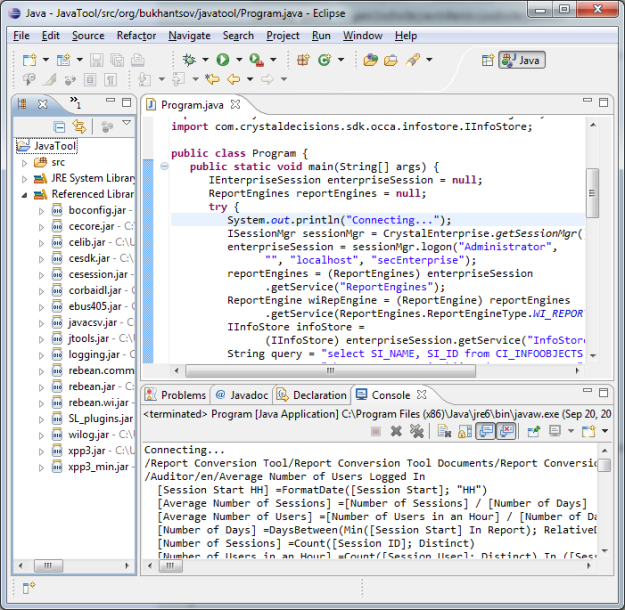
Getting started with BusinessObjects RE Java SDK

To build executable JAR: go File>Export, select Java>Runnable JAR file. Select launch configuration (you will probably have the only one), select destination, select “Package required libraries into generated JAR”, and click Finish.

You can run the program using the following command:

java -jar javatool.jar

Final notes

Before running your tool on a bunch of reports it should be carefully tested. Especially if you do modifications.

The purpose of the code was to demonstrate how to access report engine. It does not demonstrate the best programming practices.

Java SDK Libraries

The Java SDK libraries can be found in the installation folder with BusinessObjects client tools or on the server.

C:\Program Files (x86)\Business Objects\common\4.0\java\lib

Required libraries:

  boconfig.jar
  cecore.jar
  celib.jar
  cesdk.jar
  cesession.jar
  corbaidl.jar
  ebus405.jar
  jtools.jar
  logging.jar
  rebean.common.jar
  rebean.jar
  rebean.wi.jar
  wilog.jar
  xpp3.jar
  xpp3_min.jar
  SL_plugins.jar

Links

Webi Report Engine Documentation

Getting Started with Designer SDK in C#

You will need:

  • BusinessObjects Enterprise XI 3.x: You need BusinessObjects client tools installed on your PC, and a connection to a BusinessObjects server.
  • Visual Studio C#: You can install Microsoft Visual Studio Express from http://www.microsoft.com/express/downloads/.
  • Create new project: File > New Project… > Console Application
  • Add reference to the SDK: Project > Add Reference… > COM > BusinessObjects Designer 12.0 Object Library
  • Now you can start coding!

Getting started

The Designer SDK is quite simple and easy to use. Universe Designer API Reference is all you need to solve almost any task (that can be solved via the SDK).

Class Application is the main class that represents the Designer product. When an instance of Application is created, Desiner is started on background, and you can see designer.exe in Task Manager. The first thing you usually do starting Designer is logging in. The same should be done in the program using either function LogonDialog() or Logon(UserName, password, CMS, authenticationMode). In the end the program should quit the Designer, otherwise the designer.exe will stay running, even when your program finished. For this reason, your code should handle possible exceptions and quit the application before quiting the program.

using System;
using Designer;
namespace ConsoleApplication1
{
    class Program
    {
        static void Main(string[] args)
        {
            Application application = new Application();
            try
            {
                application.LogonDialog(); 

                // ... some code here ...
            }
            catch (Exception ex)
            {
                Console.WriteLine(ex.ToString());
            }
            finally
            {
                application.Quit();
            }
        }
    }
}

Hello Universe!

The following program imports the standard universe “Island Resorts Marketing” and prints the structure of its classes.

using System;
using Designer;
namespace ConsoleApplication1
{
    class Program
    {
        static void Main(string[] args)
        {
            Application application = new Application();
            try
            {
                application.LogonDialog();
                Universe universe =
                    application.Universes.OpenFromEnterprise(
                        "webi universes",
                        "Island Resorts Marketing",
                        false);
                Console.WriteLine(universe.Name);
                PrintClasses(universe.Classes, 3);
                universe.Close();
            }
            catch (Exception ex)
            {
                Console.WriteLine(ex.ToString());
            }
            finally
            {
                application.Quit();
            }
        }

        static void PrintClasses(Classes classes, int indent)
        {
            foreach (Class theclass in classes)
            {
                Console.WriteLine(
                    new String(' ', indent)
                    + theclass.Name
                    + " [" + theclass.Objects.Count
                    + " objects, "
                    + theclass.PredefinedConditions.Count
                    + " conditions]");
                PrintClasses(theclass.Classes, indent + 3);
            }
        }

    }
}